
Bloxian Business Controls & UI Navigation
PC and mobile inputs plus interface habits for a smoother Bloxico workday.
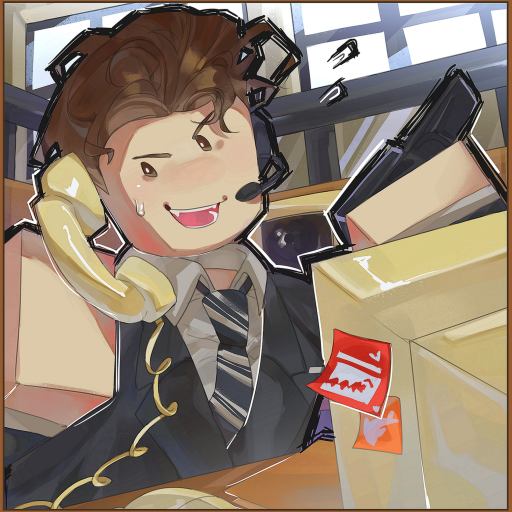
You cannot manage a Bloxico branch if you are fighting the camera. This Controls & UI guide covers how to move, look, open menus, and read task information in Bloxian Business on PC and mobile. Exact button prompts can vary slightly with Roblox client updates, so treat on-screen hints as final—and use the habits here to stay fast in crowded nine-player servers.
Brand-new hires should keep Getting Started open beside this page. Once inputs feel natural, jump back to Complete Tasks & Events and put the muscle memory to work.
Universal Roblox movement (PC)
Most keyboard players will recognize the defaults:
- W A S D — move
- Space — jump
- Shift — sprint if enabled in the experience or Roblox settings
- Right mouse drag or mouse move depending on camera mode — look around
- Left click — interact with prompts, UI buttons, and world objects when a proximity prompt appears
- Esc — Roblox menu (leave, settings, people)
- Chat bar — coordinate with coworkers; critical in co-op (see Co-op With Friends)
If movement feels sluggish, check Roblox Settings → Accessibility / Controls and your framerate. Office sims with many props can dip on low-end devices; lowering graphics often improves prompt timing more than any “secret keybind.”
Universal Roblox movement (mobile / tablet)
- Left thumb stick — move
- Right drag — camera
- Jump button — jump
- Tap proximity buttons — interact when prompts appear on-screen
- Roblox top bar — exit, report, settings
Mobile tips specific to office work:
- Rotate to landscape for a wider view of desks and markers.
- Keep thumbs clear of the chat and menu edges so you do not mis-tap leave.
- Zoom the camera out slightly in busy lobbies so you can see which prop a friend already claimed.
- If a prompt is tiny, walk closer before tapping; spam-tapping through UI often cancels the wrong panel.
Camera habits that save minutes
Bad cameras create bad routes:
- Level the pitch so you see floor markers and desk tops, not only ceilings.
- Pull back in hubs where many players gather so you can spot free interactables.
- Push in at terminals if text or small buttons are hard to read.
- Avoid extreme first-person in cluttered renovated offices—third-person usually reads furniture collisions better (see Decorate Your Office).
When an event starts, consciously reset your camera before sprinting. Panic zoom is how people run past the objective.
Reading the office UI
While layouts differ by patch, expect some combination of:
- Task / mission list — your active and available work
- Paycheck or currency readouts — the Rank & Earn heartbeat
- Upgrade / shop entry — Buy & Decorate access
- Event banners — seasonal or timed alerts (Halloween guidance in Halloween 2026 Event)
- Proximity prompts — contextual E / tap interactions on world objects
UI mastery checklist:
- Open every menu once during your first session so nothing surprises you mid-event.
- Note which panels pause gameplay versus which stay live.
- Close panels fully before moving—half-open shops cause misclicks.
- After a promotion, re-open rank UI to read new unlock text (Rank & Earn).
- After a patch, re-explore menus; Updates may mention relocated buttons.
Interaction etiquette in full servers
With up to nine players, prompts become contested:
- If someone is clearly mid-animation on a prop, find another task.
- Call “on printer” / “on lobby desk” in chat when a hot interactable is scarce.
- Do not stand inside another avatar; mobile players especially struggle to tap the right prompt.
- Back up after finishing so the next coworker can approach cleanly.
Good manners are a control skill. They raise branch throughput more than any single keybind tweak.
Roblox Plus UI reminders
If you have Roblox Plus:
- Find where the mission swap control lives and use the daily charge intentionally.
- Remember the 5% paycheck bonus is passive—you should still open the paycheck UI to claim or review on schedule.
Free players: ignore Plus buttons if present as upsells; your controls otherwise match.
Accessibility and comfort
Long office sessions strain hands and eyes:
- Lower camera sensitivity if you over-aim past prompts.
- Take breaks between paycheck cycles.
- Increase brightness if dark seasonal lighting hides markers.
- Use headphones for voice Discord calls without blasting system audio—invites on Official Links.
- On laptop trackpads, consider a mouse for precise shop purchases.
If you experience motion discomfort, raise the camera and slow turn rate in Roblox settings.
Troubleshooting common input problems
Prompt will not appear: Move closer, clear UI overlays, wait for another player to finish, or rejoin if the instance bugged.
Click buys the wrong item: Zoom shop UI, read names carefully, and avoid decorating during lag spikes.
Mobile tap opens Roblox menu: Hit boxes near the edge are risky; interact from a centered stance.
Cannot see tasks: Open the mission panel manually; seasonal banners sometimes cover icons—dismiss or scroll.
Character stuck in furniture: Jump, walk backward, or ask a friend not to trap corridors with new decor.
Performance input delay: Lower graphics quality; delay feels like “broken controls” but is frame time.
Still stuck after basic fixes? Ask on official Discord and check Players or Updates for known issues. Avoid random “fix lag” scripts—none were verified for this game in November 2026 research (Scripts).
Device-specific session plans
PC grind session: Keyboard movement + mouse camera + chat macros for callouts. Best for precise decorating.
Mobile commute session: Focus on simple clustered tasks; save complex renovations for PC. Use Plus swap on awkward mobile missions.
Tablet on a stand: Surprisingly good for supervising a co-op lobby while voice-calling routes to friends.
Linking controls to the rest of the wiki
Controls are the enabler, not the endgame:
- Learn inputs → clear tasks faster → Complete Tasks & Events
- Clear tasks → fund ranks → Rank & Earn
- Fund ranks → decorate without misclicks → Decorate Your Office
- Bring friends → assign roles without chaos → Co-op With Friends
- Browse everything → Guides Hub
Also keep Codes bookmarked for rare drops, and ignore fake control “trainers.”
Quick reference card
- Move, look, jump like standard Roblox.
- Interact via proximity prompts (click / tap).
- Open task, paycheck, and shop UIs early every session.
- Reset camera when events start.
- Call contested props in chat.
- Close panels before sprinting.
- Lower graphics if inputs feel delayed.
- Re-learn menus after patches.
Master the interface and the office stops feeling hostile. The tasks were always doable—you just needed the camera, the prompt, and a clear thumb. Clock in, keep the branch readable, and let good controls turn into good promotions.
Frequently Asked Questions
Quick answers for Bloxico branch managers.
What are the default PC controls?
Use WASD to move, Space to jump, mouse to look, and left click to interact with proximity prompts and UI. Esc opens the Roblox menu.
How do I play Bloxian Business on mobile?
Use the on-screen stick to move, drag to look, tap jump, and tap proximity buttons to interact. Landscape mode helps you see desks and markers.
Why won’t an interact prompt show up?
Move closer, close overlapping menus, wait if another player is using the object, or rejoin if the server instance glitched.
Does Roblox Plus change controls?
Movement is the same. Plus adds a daily mission swap control and a passive 5% paycheck earnings bonus you should still track in the economy UI.
What should I do after learning the controls?
Return to Getting Started or Complete Tasks & Events and practice clustered routing with clean camera habits.